Setup Guide

Get ProctorGhost up and running in minutes

Download Instructions

Follow these simple steps to download and install ProctorGhost

1

Download ProctorGhost

Click the download button below to get the latest version of ProctorGhost for Windows.

Download ProctorGhost

Full installer with automatic updates

Download Installer
System Requirements: Windows 10 or later (64-bit). The installer is approximately 500MB.
2

Install ProctorGhost

Run the downloaded installer and follow the installation wizard.

Run the installer

Double-click the downloaded file (ProctorGhost Setup 1.0.4.exe)

Follow the wizard

Click "Next" through the installation steps. The default installation location is recommended.

Complete installation

Click "Install" and wait for the installation to complete. This may take a few minutes.

Launch ProctorGhost

Click "Finish" and ProctorGhost will launch automatically.

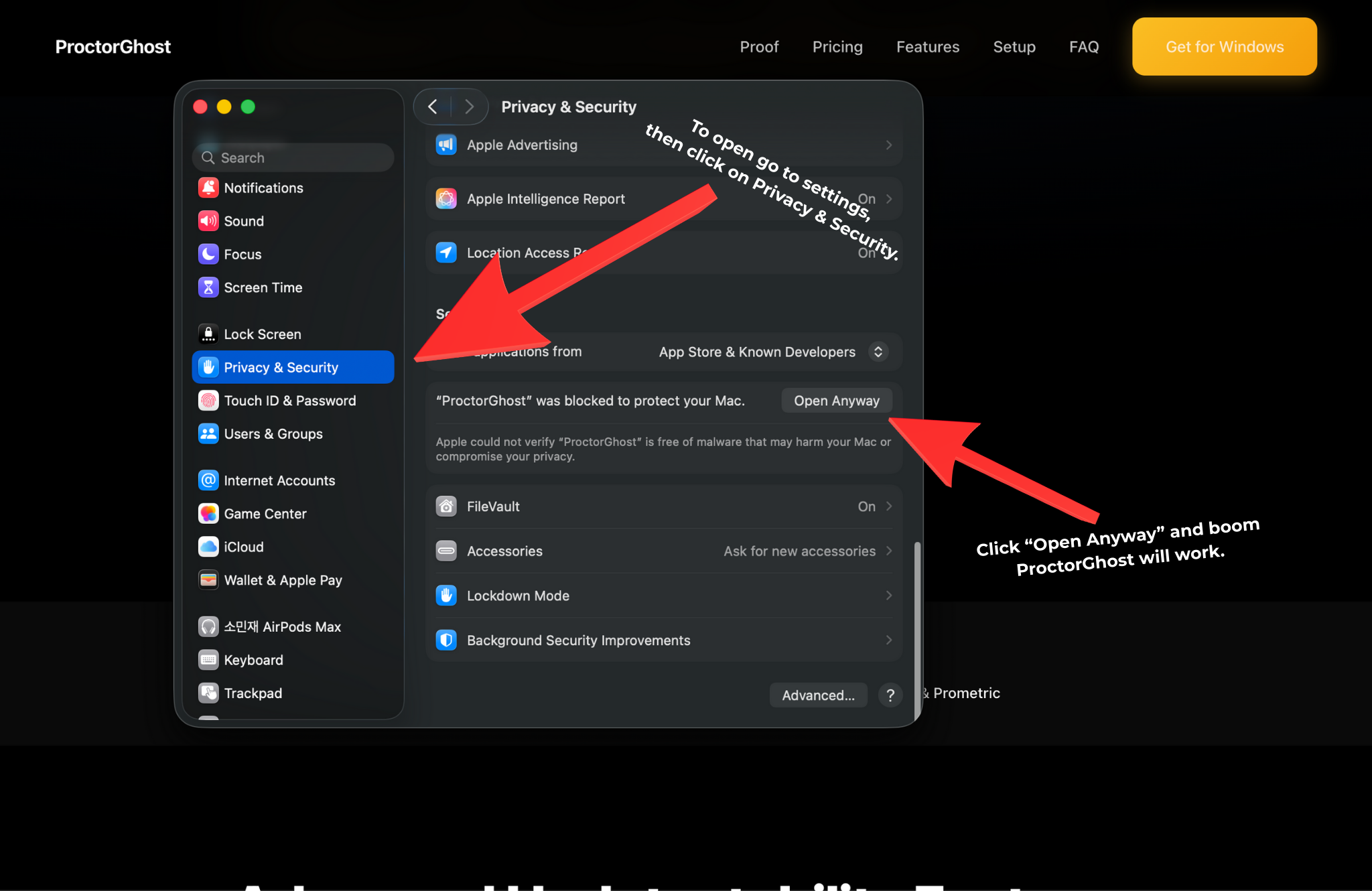
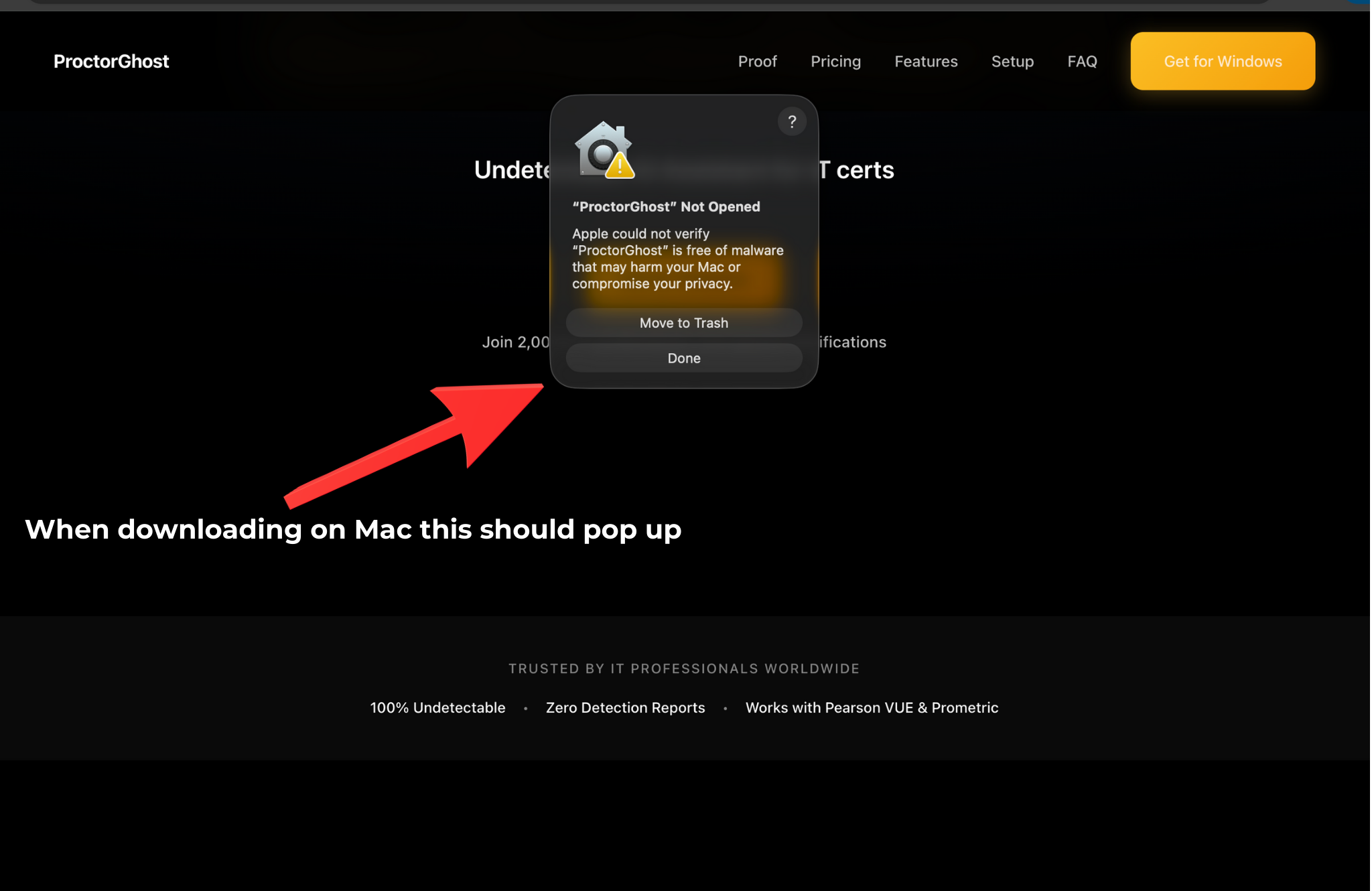
Windows Security: Windows Defender may show a warning during installation. This is normal for new software. Click "More info" and then "Run anyway" to proceed.
3

First Launch & Account Setup

Create your account or sign in to get started.

1
Launch ProctorGhost

Open ProctorGhost from your Start menu or desktop shortcut.

2
Sign Up or Log In

Create a new account or sign in with your existing credentials.

3
Subscribe

Choose your plan (Monthly or Yearly) and complete the payment.

4
Start Using ProctorGhost

You're all set! ProctorGhost is ready to help you pass your IT certification exams.
How It Works

See ProctorGhost in action - simple, fast, and undetectable

1

Launch ProctorGhost

Open ProctorGhost and sign in to your account. The app runs completely hidden in the background.

ProctorGhost Launch Screen
2

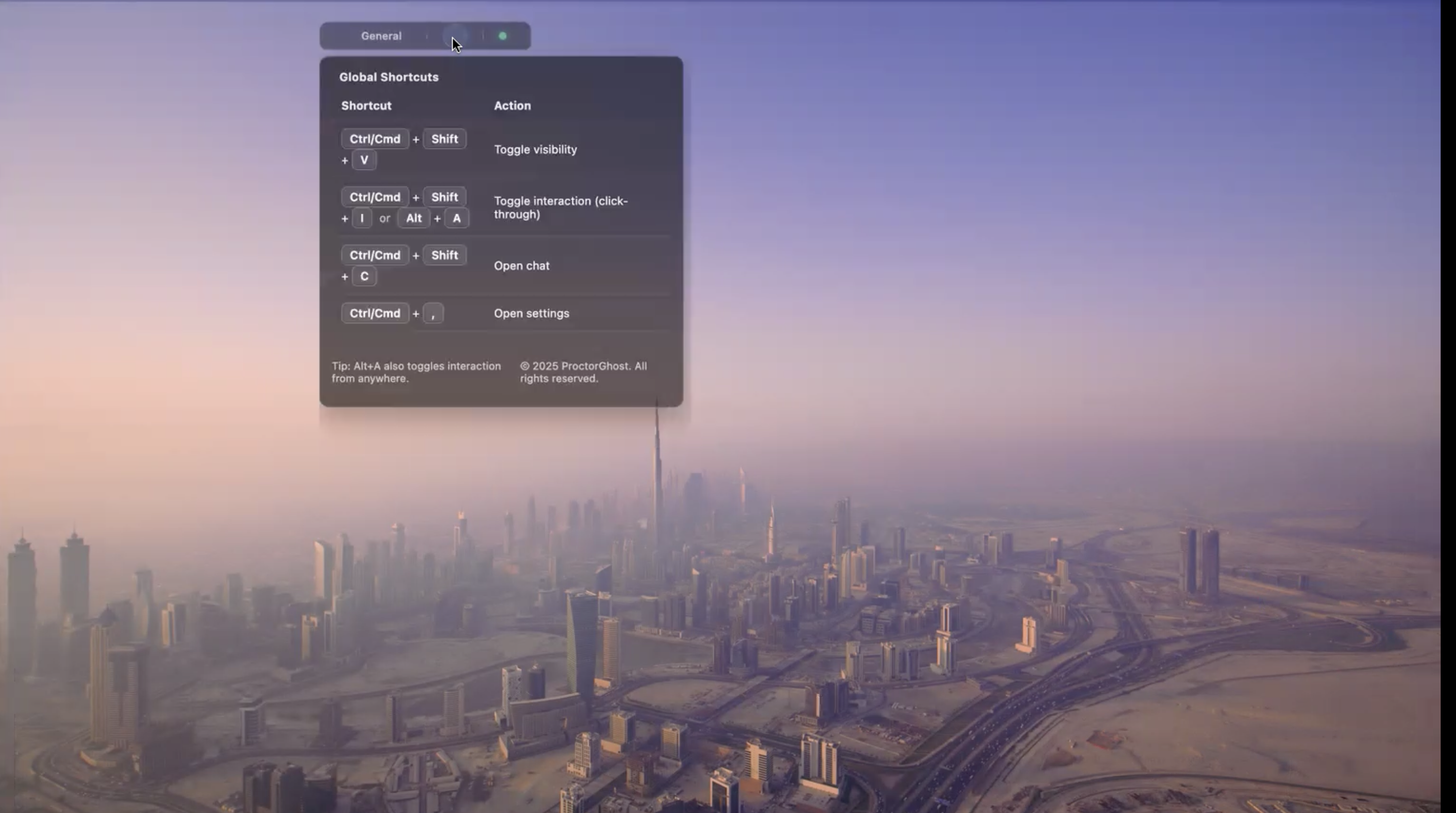
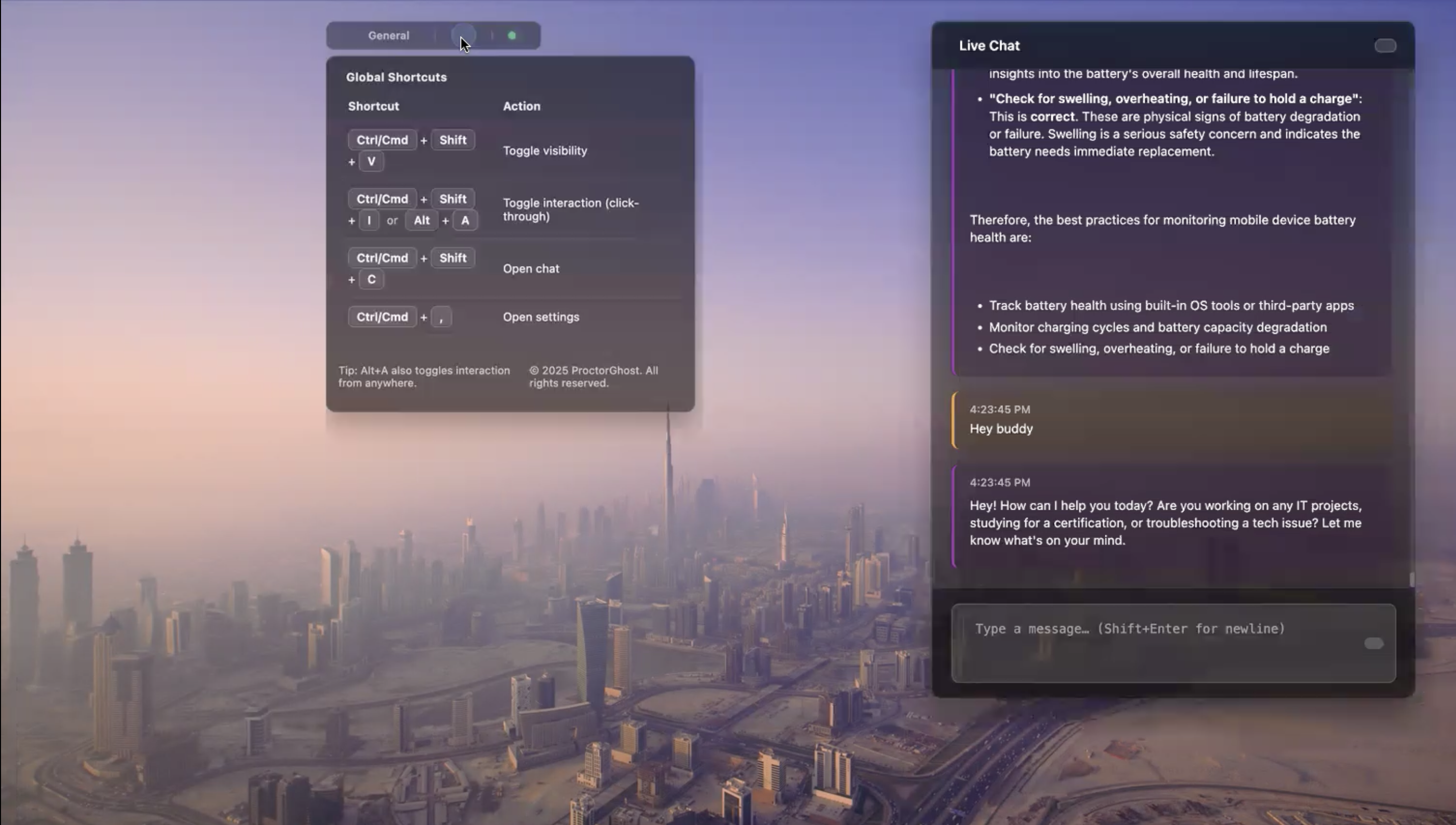
Access AI Chat & Shortcuts

Press Ctrl+Shift+C to open chat, or use Alt+A to toggle interaction mode. Get instant help with exam questions.

AI Chat and Keyboard Shortcuts
3

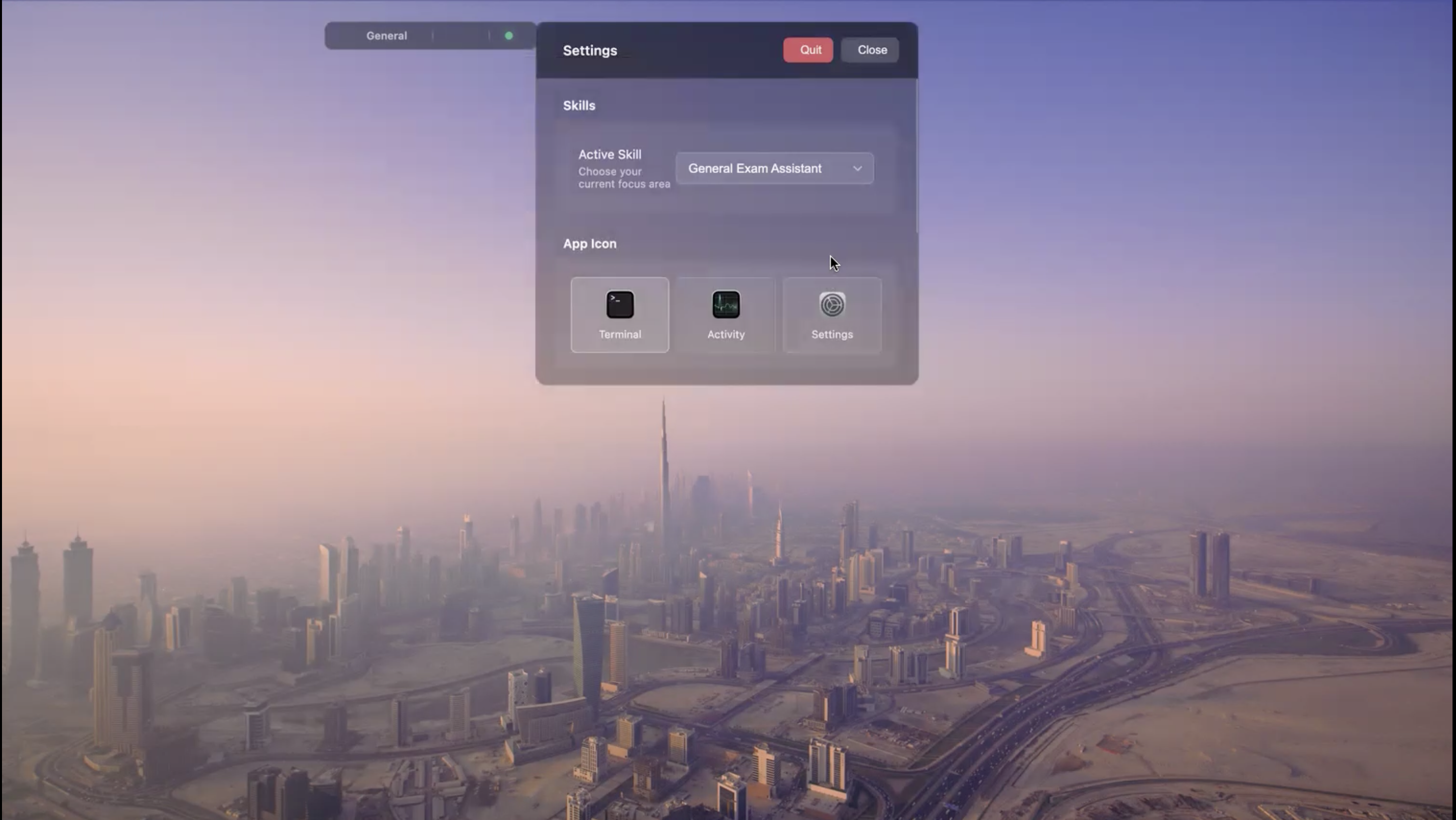
Customize App Icon

Change your app icon and adjust settings to personalize your ProctorGhost experience.

Customize App Icon and Settings
4

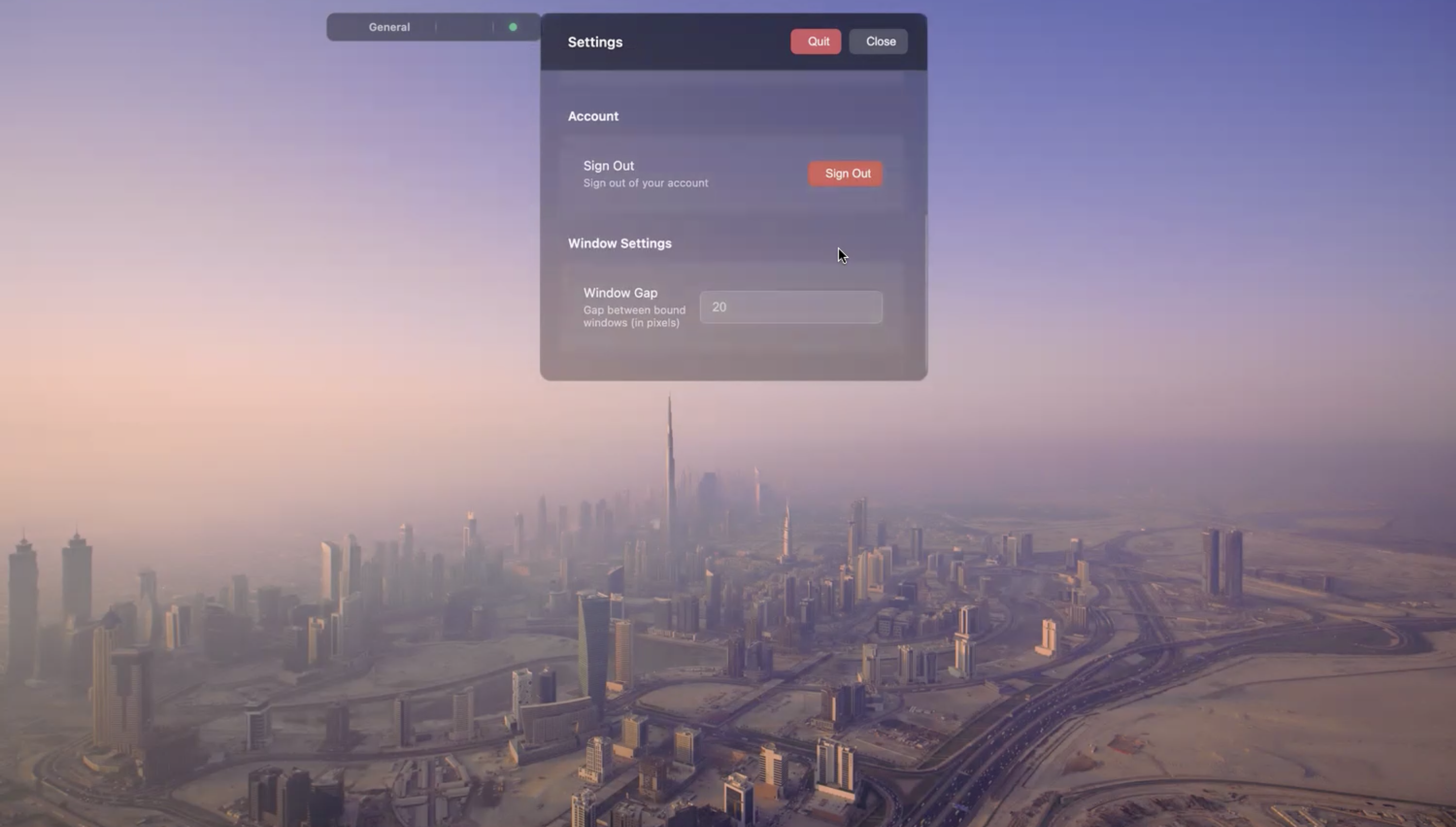
Manage Settings & Account

Press Ctrl+, to open settings. Sign out, close chat, or customize your ProctorGhost preferences anytime.

Settings and Account Management